One of the most practical questions Matterport users ask—especially those scanning commercial spaces on quoted jobs—is deceptively simple: how big is the space I just scanned? You’d think this would be obvious, but the answer isn’t always easy to find, and several of the most visible methods cost money. Here’s a breakdown of every method available, including a completely free one, plus an important note for anyone on a Classic plan.
⚠️ Classic plan users: read this first
Matterport has two distinct “generations” of subscription: the current plans (Starter, Professional, Business) and the older Classic plans, which pre-date the current subscription structure and are still supported but don’t receive newer AI-powered features.
Several of the methods below—particularly Property Layout and Automated Measurements—are not available on Classic plans. If you’re a long-standing Matterport user and certain features simply don’t appear in your dashboard, a Classic plan is almost certainly why. This is worth keeping in mind when evaluating which methods are accessible to you.
Method 1: The CAD File add-on page (free estimate — works on Classic plans)
This is our go-to method, and it’s one that many Matterport users overlook entirely. When you navigate to the CAD File add-on page for any qualifying model, Matterport displays a free square footage estimate before you need to purchase anything.
To access it: go to my.matterport.com, open your model, navigate to Add-ons → CAD File. The page will display something like:
“Based on estimated size of X square feet for this space, estimated processing time and price is as follows…”
You can note the estimate and close the page—no purchase required.
When this is genuinely useful:
-
You’re scanning a commercial property on an estimate and want to verify approximate size before invoicing.
-
A client gives you a rough square footage and you want to cross-check it quickly.
-
You want to know which CAD File pricing tier you’ll fall into before committing to an order.
-
You need a size check but don’t want to pay for a full floor plan just to get a number.
Method 2: Schematic Floor Plan add-on (paid, but shows estimate before ordering)
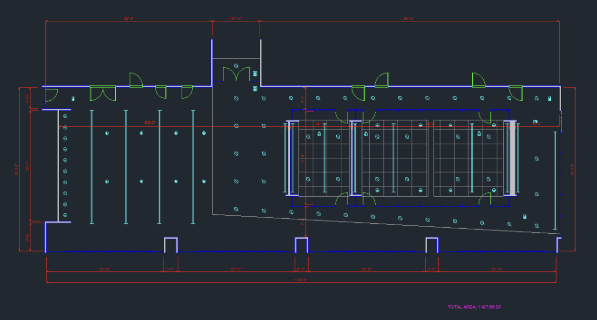
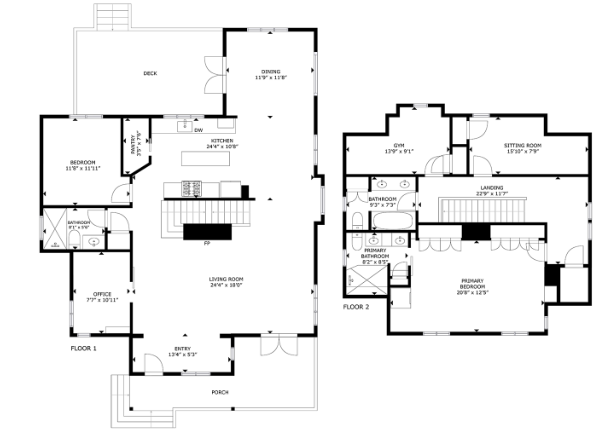
Matterport’s Schematic Floor Plan add-on also displays an estimated square footage at the top of the order page before you place your order. If you need a delivered floor plan anyway (for a client, agent, or planning use), this is often the most efficient route. Plans are delivered as PNG, SVG and PDF files per floor.
Method 3: Property Layout and Automated Measurements (current plans only)
For users on Starter, Professional or Business plans, Matterport’s Property Layout tool provides AI-generated room boundaries, automated measurements, and a property report. This gives you a room-by-room breakdown of area and dimensions directly within your model—no add-on purchase needed.
⚠️ Not available on Classic plans. If you don’t see this feature in your dashboard, this is the most likely reason.
If you’re frequently needing size estimates and room-level measurements, this is one of the stronger arguments for upgrading from a Classic plan to a current subscription.
Method 4: Measurement Mode (manual, all plans)
Matterport’s built-in Measurement Mode lets you manually measure walls, floor areas, door widths and ceiling heights directly within the 3D model. It’s available across plans and doesn’t require any add-on purchase. It’s not the quickest way to calculate total floor area, but it’s reliable for spot-checking specific dimensions—especially if a client queries a particular room or feature.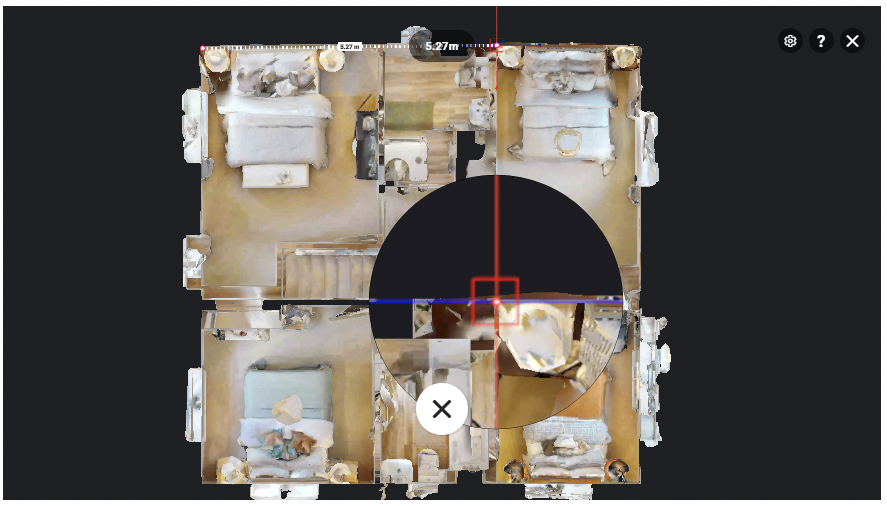
Method 5: MatterPak (professionals needing raw data)
The MatterPak bundle includes a colourised point cloud, reflected ceiling plan, and high-resolution floor plan images. It’s aimed at architects, engineers and construction professionals who need raw spatial data rather than a presented floor plan deliverable. Pricing is tiered by space size.
If you need a professional Matterport scan with CAD file deliverables in London, get in touch and we can recommend the best approach for your space and budget.